Thursday, 18 November 2010

Introducing: SequentialProcess

Ever tried to chain multiple calls to FdoUtil.exe using a batch file?

I did recently on a client site, and found out that for one reason or another the Task Scheduler feature of Windows Server 2008 decided that the batch file I wrote was not going to run. After trying to find out the reason why (with no success), I tried running the individual calls to FdoUtil.exe with the Task Scheduler. Lo and behold they ran!

So armed with this knowledge, I have introduced a 3rd task type into FDO Toolbox, which will be in the next beta release: The Sequential Process.

A sequential process is simply an XML document that contains a series of calls to FdoUtil.exe, with an option at each invocation to abort the process if the previous FdoUtil.exe invocation returns a non-zero result (FdoUtil.exe returns 0 on success, otherwise it returns one of the predefined values here)

So for example, you can define a sequential process like so:

1. Run a SQL command to delete some rows
2. Execute a bulk copy task file (eg. SDF to SQL Server)
3. Run a SQL command to rebuild indexes

The SequentialProcess document would look like this:


Here's what it looks like visually (yes! This will have design support):


When you run this sequential process. Each step will be run as a separate FdoUtil.exe process, with the root process waiting for a return result from this process before continuing onto the next step.

For reference, FdoUtil.exe currently supports the following commands:
  • ApplySchema
  • CreateDataStore
  • Destroy (data store)
  • DumpSchema
  • CreateFile (data store)
  • RegisterProvider
  • UnregisterProvider
  • BulkCopy
  • RunTask
  • ExecuteSql
The sequential process task has opened up the design space for more FdoUtil.exe commands. So this list will definitely grow in size in future releases.

And yes, the RunTask command now supports SequentialProcess documents, so theoretically speaking, you can also nest Sequential Processes and other supported task types.

As I said before this is task scheduler friendly (the main reason for introducing this feature), so you can hook this up via the task scheduler for painless daily data updates or other automated spatial data maintenance.

Thursday, 14 October 2010

Using Maestro in native mode with MapGuide Open Source 2.2 / MapGuide Enterprise 2011 assemblies

The release of MapGuide Enterprise 2011 and the pending release of MapGuide Open Source 2.2 has slightly changed the game with regards to using Maestro with the official API

Here's how to do it with this release.

First go to the mapviewernet/bin directory of your MapGuide installation


The highlighted dlls are the .net assemblies we need to strong name. Because of RFC68, the previous MapGuideDotNetApi.dll is now split into 5 separate assemblies. The MapGuideDotNetApi.dll in this installation is now a compatibility stub that redirects to the 5 assemblies.

To be able to use these assemblies in Maestro, we need to do the following:
  • Sign all these assemblies with the Maestro public key
  • Setup binding redirection for this new version of MapGuideDotNetApi.dll in web.config/app.config
Unfortunately, the current method using Signer.exe does not work because it doesn't properly handle assemblies with TypeForwardedTo attributes (as is the case with the new MapGuideDotNetApi.dll) nor does it handle updating inter-assembly references to signed equivalents, so to actually sign these assemblies, we need to use the ildasm.exe and ilasm.exe utilities that come with the .net Framework SDK.

So first, copy the aforementioned assemblies into a temporary folder

Rename MapGuideDotNetApi.dll to MapGuideDotNetApi-2.2.dll

Now open up a SDK command prompt into this folder and issue the following commands:
  • ildasm /all /out=MapGuideDotNetApi-2.2.il MapGuideDotNetApi-2.2.dll
  • ildasm /all /out=OSGeo.MapGuide.Foundation.il OSGeo.MapGuide.Foundation.dll
  • ildasm /all /out=OSGeo.MapGuide.Geometry.il OSGeo.MapGuide.Geometry.dll
  • ildasm /all /out=OSGeo.MapGuide.MapGuideCommon.il OSGeo.MapGuide.MapGuideCommon.dll
  • ildasm /all /out=OSGeo.MapGuide.PlatformBase.il OSGeo.MapGuide.PlatformBase.dll
  • ildasm /all /out=OSGeo.MapGuide.Web.il OSGeo.MapGuide.Web.dll
Your file listing should now look like this:

Delete the existing dll files, because ilasm.exe will rebuild them.

Before we continue, let's sidestep for a moment.

Here is a screenshot of a reflector dump of the original MapGuideDotNetApi.dll

Notice the PublicKeyToken=null part of the referenced assembly. The original MapGuideDotNetApi.dll is referencing un-signed assemblies (obviously). So when we rebuild MapGuideDotNetApi.dll with ilasm.exe, we have to make sure that it is referencing the signed versions of these assemblies, otherwise the you will get errors due to failing to locate the strongly-named assembly.

Also note that some OSGeo.MapGuide assemblies reference other OSGeo.MapGuide assemblies, thus we need to ensure that all references need to be updated. For reference, the dependency chain is as follows:
  • OSGeo.MapGuide.Foundation references nothing
  • OSGeo.MapGuide.Geometry references OSGeo.MapGuide.Foundation
  • OSGeo.MapGuide.PlatformBase references OSGeo.MapGuide.Foundation and OSGeo.MapGuide.Geometry
  • OSGeo.MapGuide.MapGuideCommon references OSGeo.MapGuide.Foundation, OSGeo.MapGuide.Geometry and OSGeo.MapGuide.PlatformBase
  • OSGeo.MapGuide.Web references OSGeo.MapGuide.Foundation, OSGeo.MapGuide.Geometry and OSGeo.MapGuide.PlatformBase

Download a copy of the maestroapi.key into this directory.

Now in the same command prompt, rebuild and sign the OSGeo.MapGuide.Foundation assembly using ilasm.exe:
  • ilasm /dll /key=maestroapi.key OSGeo.MapGuide.Foundation.il

Take a look at this assembly in reflector.

Note the public key token, it will be the same for the other signed assemblies that we will sign. We need to update the IL of MapGuideDotNetApi and others to include this public key token in their assembly references.


Open the MapGuideDotNetApi-2.2.il in a text editor.


Locate the relevant section for the IL files of the other assemblies and update them with the same public key token. Once that is done, rebuild and sign them all with ilasm.exe
  • ilasm /dll /key=maestroapi.key OSGeo.MapGuide.Geometry.il
  • ilasm /dll /key=maestroapi.key OSGeo.MapGuide.MapGuideCommon.il
  • ilasm /dll /key=maestroapi.key OSGeo.MapGuide.PlatformBase.il
  • ilasm /dll /key=maestroapi.key OSGeo.MapGuide.Web.il
  • ilasm /dll /key=maestroapi.key MapGuideDotNetApi-2.2.il
Your assemblies are now properly signed and referencing the signed versions of their needed assemblies.

Now these are ready to be used in Maestro.

Copy all the files from mapviewernet/bin (except for MapGuideDotNetApi.dll) into your Maestro installation.

Now copy all the signed assemblies from our temp directory into your Maestro installation, overwrite the existing assemblies with our signed ones.

Now edit your app.config/web.config to redirect the currently referenced MapGuideDotNetApi.dll to our signed version:

And Maestro in Native mode will correctly use the assemblies we just signed.

Note that for MapGuide Enterprise 2011, the assembly version number is different but the process is the same.

Upon the proper release of MapGuide Open Source 2.2, I'll post the signed assemblies here so you won't have to follow this long process :D

Wednesday, 29 September 2010

The expressive power of MapGuide Tooltips redux

Over a year ago, I wrote about how you can have really powerful tooltips in MapGuide with some knowledge of HTML and the FDO expression language, with one major caveat:

You can't have interactive content in the AJAX viewer.

Well I've finally tackled this problem and implemented "sticky" tooltips for the AJAX viewer, so now you can have your Google Charts or Youtube videos in your AJAX viewer tooltips and be able to interact with them

I'm hoping to get this in for the 2.2 release of MapGuide Open Source. If you can't wait, and know how to apply diffs, you can grab the patch here

Monday, 27 September 2010

Using FDO XML configuration to reduce the attack surface of your data store (and improve performance)

Consider the following SQL Server database:


The screenshot isn't big enough to show it, but there are 250 feature classes in this schema. Sometimes for security purposes, you don't exactly want to make all 250 feature classes visible to any FDO client application (eg. MapGuide). This is commonly known as reducing the attack surface.

With FDO XML configuration and the Unified Data Store editor, you can override the default logical schema (250 classes) with something that is more stripped down (like say: 10 classes)

To do this, we once again use the unified data store editor


Now select the feature classes you don't want visible and remove them (for ease of use, you can remove a feature class by hitting the Delete key as long as the class node is selected)

Now for the important bit: Do not apply the changes! Doing so will actually delete these feature classes from the underlying data store which we do not want! We just want to hide them.

Instead, we export this current state of the logical schema to an XML configuration file


Now if we make another connection with this XML configuration file


We see that the connection takes on the logical schema as defined in our XML configuration file.

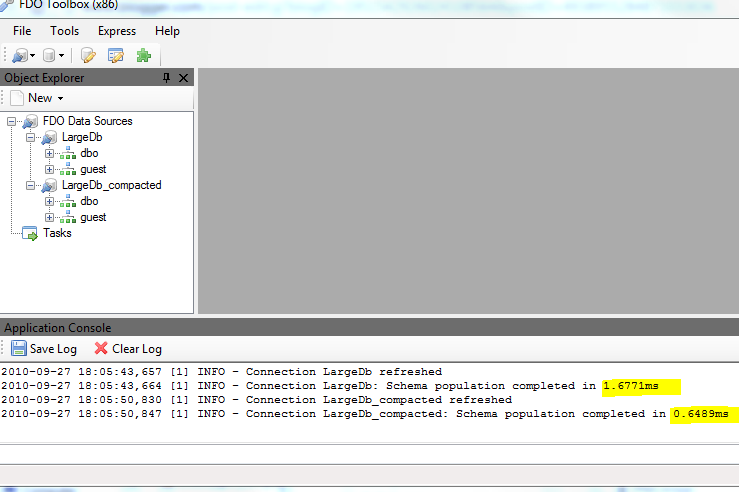
Another benefit of a reduced attack surface is performance. Here's the schema walk of the 250 class connection (LargeDb) and the configured one (LargeDb_compacted):


Although SQL Server already implements FDO RFC23, and thus schema walking is already efficient, and the times in question (as you can see from the screenshot) are already well under 10ms, you can objectively see that having a stripped down logical schema via XML configuration does indeed improve performance, which makes sense (less classes = faster loading). Now a really good test case would've been the ArcSDE provider and the Utah SGID dataset, but unfortunately the ArcSDE provider does not support XML configuration :( so that's a case of "what if?".

Another wonderful use of FDO XML configuration brought to you by the Toolbox.

Using FDO Schema Overrides Redux

When I announced beta 2 of FDO Toolbox 1.0, I briefly mentioned that the new Unified Data Store editor doubles as a visual FDO Schema Override editor.

In this post I'll illustrate how we can create FDO XML configuration documents without needing to modify a single line of XML in a text editor, using our Unified Data Store editor.

We will use the same sample SQL Server database from our previous post


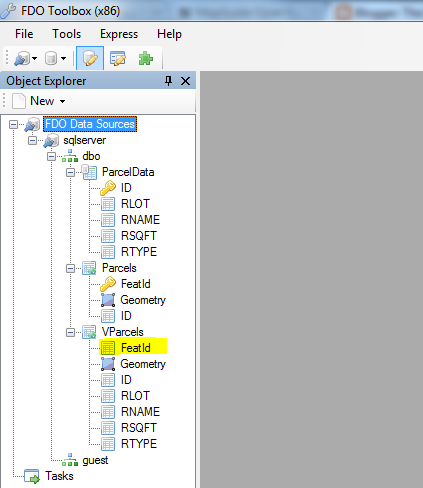
Creating a connection to this via FDO Toolbox gives us the following logical schema view:


Notice once again, how the FeatId property is not identity. Now where the previous post used a text editor to tweak the logical schema, we will do the whole process visually using the unified data store editor.

We'll right click the connection and use the new Edit Data Store option


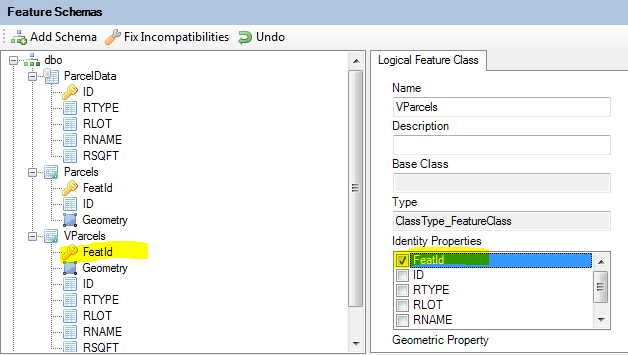
This brings up the Unified Data Store editor.


Now what we simply do, is modify the logical schema so that it matches what we want it to be. In this case, we want FeatId to be an Identity Property of VParcels. So we select the VParcels feature class, this will bring up the class definition editor. We check the FeatId property under the Identity Properties to make FeatId an Identity Property


Now comes the important bit: Do not apply the changes!

Instead we export this current state out to an XML configuration document via Export - XML Configuration Document


Now let's create another connection to the same database, but this time we'll use the XML configuration document we have just saved.


If we look at the VParcels feature class in this configured connection, you'll notice it takes on our overridden logical schema.


From here, the process is just like the previous post. In Maestro's feature source editor, you would edit the configuration document of that feature source, paste in the contents of this XML file and save it. Layers based off of the VParcels feature class will then be selectable.

As I mentioned in the beta 2 announcement this editor is not fully complete. For one thing, there is no user interface to edit the physical configuration of any Class Definitions and Property Definitions. Whatever mappings gets exported out to XML are the default mappings generated by the provider.

But for overriding the default logical schema (which I'd guess is the common scenario), the unified data store editor makes this process much simpler than the older method of editing XML files by hand.

Announcing: FDO Toolbox 1.0 beta 2

Here it is! The 2nd beta of FDO Toolbox 1.0

This contains many new changes from the 1st beta, some of the notable features include:

Unified data store editor

All the of schema and spatial context management functionality is now merged into a single user interface


As you can see from the above screenshot, instead of trying to win the losing battle against the WinForms PropertyGrid, all schema element editors are now specialized user interfaces.

Because we have now unified everything, we have all the necessary information needed to create full XML configuration documents. Therefore, exporting to XML will now export the full XML configuration document (Spatial Contexts, Logical Schemas and Physical Mapping).

Thus the unified data store editor doubles up as a visual schema override editor. I'll elaborate on this in a future post.

Just like the original schema editor, this functions also in a disconnected mode, free of any restrictions imposed by FDO provider capabilities.

The unified data store editor is not fully implemented yet. Some features are missing or not fully tested, such as:
  • Object Property support
  • Association Property support
  • Class inheritance support
  • Logical-Physical mapping configuration
Despite these missing features, the unified data store editor should fulfill most common data modeling scenarios.

SQLite-driven join operations

The old join engine has been replaced by one backed by SQLite. This not only simplifies the whole implementation, but performs much faster since we delegate all the complex join logic to SQLite.

In addition, join operations now support filters on both the left and right sides of the join.

More express support for RDBMS providers

The beauty of most FDO RDBMS providers deriving from the same core, is that the same concept of re-use can be applied as the user interface level as well. As such supporting additional FDO providers based on the GenericRdbms core is a piece of cake.

The express module now has support for creating the following data stores
  • MySQL
  • PostgreSQL/PostGIS (via the new OSGeo.PostgreSQL provider)
Also included is support for connecting via the commercial Autodesk FDO providers (as these are also based on GenericRdbms):
  • SQL Server (using Autodesk.SqlServer provider)
  • Oracle (using Autodesk.Oracle provider, experimental)
These commands are only available if you have the aforementioned providers already registered in your providers.xml file.

Bulk Copy UI enhancements

The process of creating bulk copy tasks is now faster than ever.

Add All Connections option

I have discovered from my common usage patterns in creating bulk copies is that I want to add all connections that I currently have open in the Object Explorer. So I've added an option to Add All Connections so you no longer have to painstakingly add each connection individually.


Auto-map properties option

Another thing I discovered, especially when bulk copying to freshly created data stores is that most of the time, I will be mapping properties to identically named properties in the target feature class (and have them created if they don't exist). As such, I've implemented an Auto-map context menu option, which will map each un-mapped property to a property of the same name, with the create if not exists option set to true. This saves lots of time if your source feature class has 50+ properties.


Other changes

Rounding out the other changes:

FDO updated to 3.5.0 RC2

FDO has been updated to the latest RC2 version. Most notable thing here is the ArcSDE provider, which finally implements FDO RFC23. This implementation dramatically cuts down the time needed to perform a schema walk on an ArcSDE data store.

Here's how long it took to schema walk the Utah gov't SGID public database with a pre-RC2 provider:


Here's how long it takes to schema walk the same database with the RC2 provider:


An 18x improvement! No need to take a coffee break waiting for the schema to fully load.

Friendlier connection names

When you drag and drop a supported file into the Object Explorer, it will normally create a connection name of the form: [Provider]_[Number]

Now the naming algorithm is more refined so that for file-based providers, it will create a connection name in the form of: [Provider]_[FileName]

Miscellaneous Fixes and Changes
  • Fix "create class of same name" option not working when target schema already has classes
  • Disable configuration section in the Generic Connect UI for providers that don't support configuration
  • Reader fixes for decimal properties
  • Make the Bulk Copy UI more flexible and resizable
  • Prevent connection removal on active Bulk Copy and Join UIs
  • Handle connection renaming on active Bulk Copy and Join UIs
  • Prevent connection removal if open tasks depend on it
  • Bulk Copy process no longer tries to execute a delete on a non-existent target class


Friday, 17 September 2010

How to: auto-invoke an AJAX viewer command on startup

I've recently put up a new code sample to illustrate how to automatically invoke a specific AJAX viewer command on startup.

This uses the Initial Task Pane URL property of the Web Layout to load our autostart page, which then uses the AJAX viewer JavaScript API to locate the named command and execute it if found.

This will work with any command type, you just need to know the name (not the label) of the command.